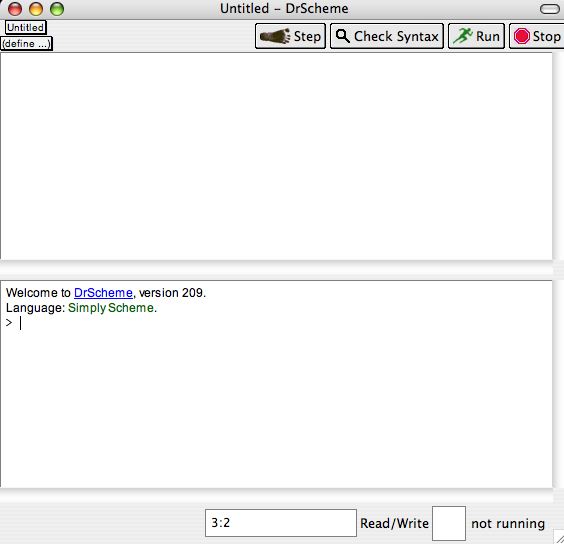
This is an update to my deprecated Three-step program to set up simply-teachpack guide.
Note for hackers: Source code for the program I used to help convert simply.scm to simply-scheme.ss is in this tarball.
This guide should help you get DrScheme to automagically load up Simply Scheme support definitions at startup time.
For recent versions of DrScheme, I've prepared a package using DrScheme's PLaneT package mangagement system. I don't have screenshots of the installation procedure yet, but here's a step-by-step-guide.
    (require (planet "simply-scheme.ss"
               ("dyoo" "simply-scheme.plt" 1 1)))
and press the Run button. Although there's no visual confirmation,
the tool should be installed. (I will amend this in the next version
of the package.)then the installation was successful.Welcome to DrScheme, version 370. Language: Simply Scheme
First, start up DrScheme. If you don't have DrScheme, grab it first and install it. I've tested this against v209 and v301 (and the screenshots below refer to v209). Still, I'd recommend running this on v301, as it is the most recent and stable version of DrScheme.
(If you require this package for another version of PLT Scheme, please contact me, and I'll see what I can do.)
Click on the Install .plt File ... command under the
File menu.
You should see a dialog box come up asking for a URL. Enter the following into the URL text box:
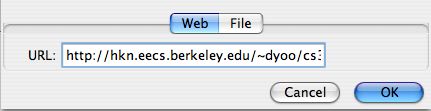
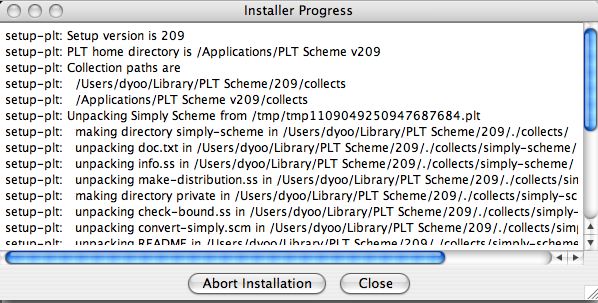
You should see an installation dialog pop up with some messages
about "unpacking" or something like that. Eventually, it should
finish, and you should be able to press Close.
Restart DrScheme. It needs a restart because we added a new
"language" to DrScheme, and it only looks at languages when it starts
up. Once DrScheme starts up again, go to the Choose
Language... command under the Language menu.
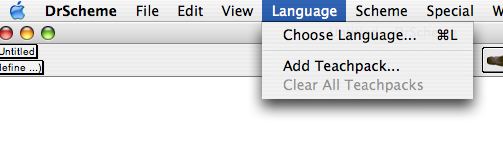
A dialog box should pop up. Select the language Simply Scheme
underneath the Teaching Languages.
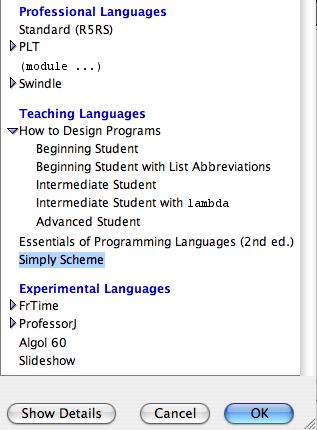
Press the Run button. If all went well, we should see that the
Language is now selected. We're done!